The cross-progression system in Arknights Endfield allows you to continue the game from the same point on another device. Cross-save is available on PC, mobile devices, and PlayStation 5, but synchronizing your data requires a few important steps.
As with many other multiplatform games with gacha mechanics, it’s easy to accidentally create a new account or link it incorrectly, especially on PS5. To avoid problems, follow these instructions.
How to link Arknights Endfield accounts

All your progress in Arknights Endfield is linked to your Gryphline account. Whether you’re playing on PC or mobile, simply log in to the same Gryphline account when launching the game on both devices.
On PC and mobile devices, you can easily log out and log in to other accounts, simplifying the reroll process. The situation becomes more complicated when the PlayStation 5 console is added to the game.
How to set up cross-save on PS5 in Arknights Endfield

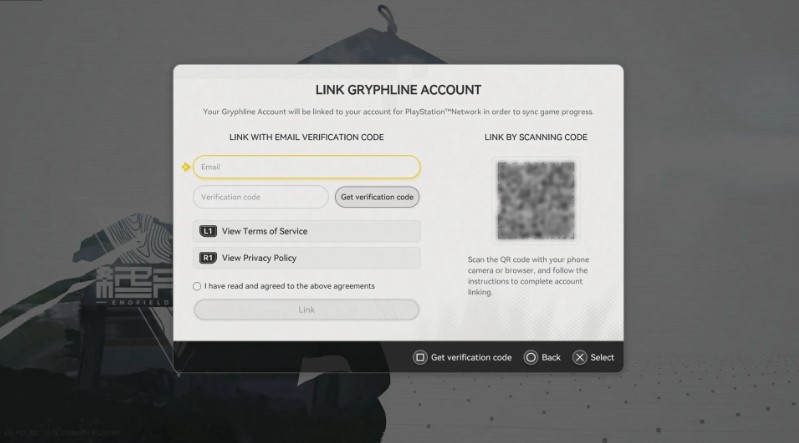
When you first launch Arknights: Endfield on PS5, the game will prompt you to sign in with your Gryphline account. If you skip this step, the system will automatically register a new account and permanently link it to your PSN account.
If you started playing on PS5 and want to transfer your data to a PC or phone: Launch the game on PlayStation, then go to Settings > Platform & Account > User Center > Link Email. Here you can link your Gryphline account (created with PSN) to an email address. You can then use this email address to log in on your PC or mobile device.
If you’re playing on PC or phone and want to connect to your PS5: When you launch the game on your PS5 for the first time, you must sign in with your existing Gryphline account. If you ignore the sign-in window and start playing, your PSN account will be permanently linked to the new, empty Gryphline account.
It’s crucial not to mindlessly press buttons when you first launch the game on your PS5. The Gryphline account linking prompt appears immediately after accepting the user agreement, and this is your only chance. If you miss it, your PSN will be linked to a new account.
Once all accounts are correctly linked, the issue will resolve. If you accidentally linked your PSN to a new account, you’ll need to contact Gryphline support to unlink it. Merging progress from two different accounts is not possible, so one of them will be lost.